Your trading reflexes, upgraded.
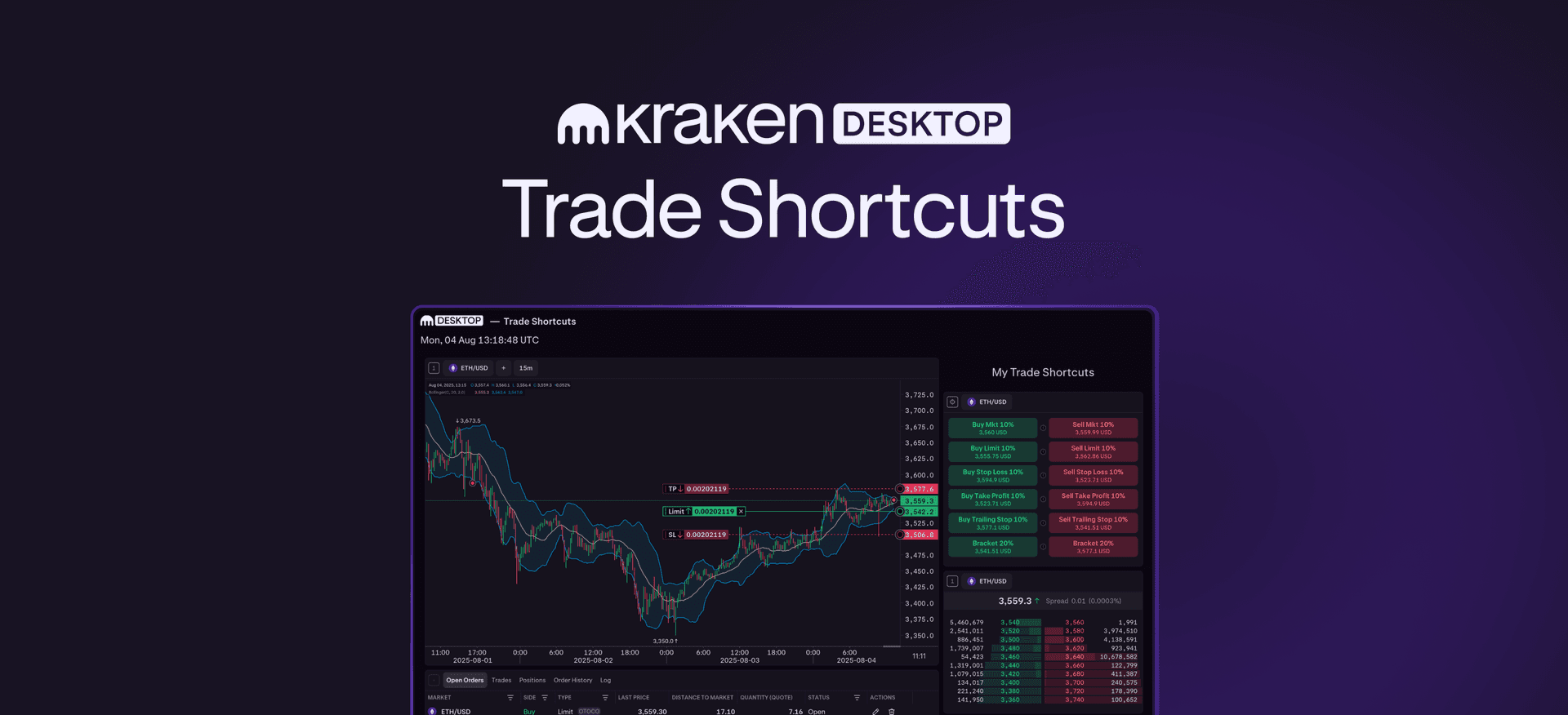
With the new Trade Shortcut module in Kraken Desktop, you can now place pre-configured trades instantly — no forms, no hesitation.
Build custom buttons for any strategy, from quick entries and exits to smart OSO setups.
Speed, precision, and control — now at your fingertips.
Trade Shortcuts on Kraken Desktop
On Kraken Desktop, you can now: Create and execute one-click trades
 Automate take profits and stop losses
 Dynamically adjust to the active market
Trade with unmatched speed — one-click entries, exits and OSO setups.
What do these Trade Shortcut settings mean?
Option
What it lets you do
Market
Pin to a fixed market or adapt dynamically based on your active module
Order Type
Market, Limit, Ask/Bid, Stop Loss, Take Profit, Trailing Stop (and more)
Funding Type
Trade with Spot or Margin funds
Quantity
Set fixed size or use a % of available balance
Trigger Signal
Use Last, Index, or Mark Price for execution logic
Price Offsets
Use negative/positive offsets for limit orders or trigger distances
Attached OSO
Automatically link Take Profit and Stop Loss with OCO logic
Reduce Only
Prevent increasing position size — use to manage exits only
Sound Events
Get audible cues for Filled, Rejected, or Partially Filled orders
Labels
Auto-generated from order config — or create custom names
Setting up a limit buy shortcut with built-in TP/SL logic pic.twitter.com/JRhmBujuCp
— Kraken Desktop (@KrakenDesktop) August 4, 2025
Five ways traders are using Trade Shortcuts
Make fast entries without hesitationMarket moving? A one-click shortcut lets you enter instantly — with predefined size and risk controls.
Set your profit targets without hoveringAttach take profit levels that auto-trigger with precision — even while you’re watching another chart.
Exit losers, fastKeep a “Sell Market – Reduce Only” shortcut always ready to flatten losing positions on demand.
**Automate your discipline
**Set fixed-size entries and stops to enforce consistent trading rules — no second-guessing.
**Switch strategies with one preset
**Create Trade Shortcut presets for different market conditions (e.g., “Choppy,” “Breakout,” “Reversal”).
Your trades. Your rules. No delay. pic.twitter.com/kTtybLUvnK
— Kraken Desktop (@KrakenDesktop) August 1, 2025
Where to find it
You’ll see Trade Shortcuts live in Kraken Desktop:
- In any board or split module layout
- Via the “Configure” panel → Trade Shortcut
- Inside the “Edit Module” panel for customizing buttons
 Trade Shortcuts are currently available only on Kraken Desktop
Pro tips for power users
- Use auto-labeling for clear intent (e.g., “Buy Limit 25% 1TP/1SL”)
- Keep your emergency exits (e.g., full sell Reduce Only) at the top
- Create presets for different strategies and markets
- Turn on “Skip confirmation” for true single-click trading
- Review your OSO setups before high-volatility sessions

Open the Quick Trades layout on Kraken Desktop
A quick reminder
 Trade Shortcuts are powerful tools and should be configured carefully. Always verify trigger signals, size, and attached orders before use — especially with Skip Confirmation enabled.
Trade Shortcuts on Kraken Desktop
The post appeared first on Kraken Blog.